Tuesday, 5 May 2009

How to restore the System State data backup in XP?

Today tip help you to restore the System State data backup to recover the windows critical components and return to your computer to earlier state. With restoring the system state back up, you are going to recover the systems Active Directory, System volume (SYSVOL), COM+ class registration database, Windows registry and Windows boot files.
Follow the given steps to run System State data restore wizard:
To use this feature, you will need to be logged into your computer with administrative rights.
First must make sure, you have the system state backup on your disk.
Click on Start button> All programs> Accessories> System Tools then click on Backup.

Now by default backup wizard will start, click on advanced mode option to change the restore settings
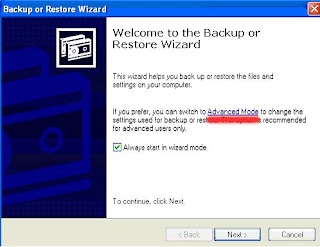
Here a dialog box will appear with title "Backup Utility", select "Welcome" tab and click on Restore Wizard [Advanced] button to restore the backup of important windows components. Click on Next button to continue restore wizard.
Here click on Browse button to specify the source of backup file and then select item to restore.

Now verify your selected settings and click on Finish button.

At the end, system will display a warning message "Restoring System State will always overwrite current system state unless restoring to an alternate location" press Ok button to start restore process.

Manage the correct power scheme in XP

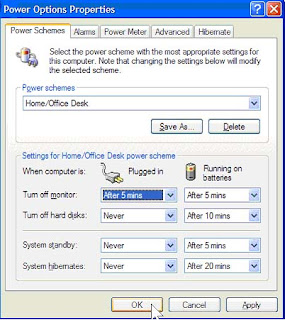
Windows XP contain a number of predetermined power plans, which control settings like how rapidly your laptop turns off and when your screen saver boots in. You can change your laptop power scheme by choosing Control Panel > Power Options. For max. Battery life from the "Power scheme" chooses the option "Max. Battery" and decline the list. There are good choices for you just like "Low Power Mode" and Portable /Laptop. They don't conserve as much power as Max Battery. After selecting a power scheme you click Ok button to finish the process.

Stop your wireless signal when you are not using.

After turning off your Laptop can save max. 20 minutes of your laptop's battery time because WiFi can use a considerable quantity of power. By right clicking you can stop your WiFi signal when you are not using.

Lower the backlighting on your screen.

The screen of your Laptop takes up significant amount of power and you do not require its maximum brightness. You should have to check your system and decrease the screen brightness it to a comfortable point.

How to increase your Laptop Battery's Life?

Dear friends you have read many interesting tips from my site and I think you have gained more knowledge from them. Now I have a more interesting tip to increase your Laptop's battery life. There is no matter, laptop manufactures gives you the guarantee about the battery that how long it works. The battery of laptop always stops working very early at some stage in essential research, just like when you are watching a DVD movie.
Follow the few steps to increase the laptop battery's life:

How to uninstall the windows XP using command prompt?

Today tip will help you uninstall the upgraded version of windows XP using the command prompt options. If you have upgraded your operating system from the previous versions of windows 98 Second Edition, or Windows Millennium Edition (Me) and now you wants to revert to the operating system that was previously installed on your computer. Windows XP can be removed by uninstalling from a Command Prompt option in Safe mode because XP includes the Uninstall Windows XP option.

Follow the given steps to revert to the operating system that was previously installed on your computer:
To manage windows XP, first you should log onto your computer with administrative rights.
First boot your system in Safe mode by pressing F8 button at the same time before the windows logo appears.
First click on Start button and type cmd in Run option then press Ok button to display the Command Prompt.At the command prompt type cd/ command and press enter.
Now again type the command cd\windows\system32 and press enter button. After execution of this command, system will change the previous directory mode.Now type the command at command prompt osuninst.exe to start the process.
Now on the computer screen, follow the instructions on the screen to begin uninstalling Windows XP from your computer to restore the previous operating system.

Task Manager running but hidden from view

If you are using Windows Task Manager to display the information about programs and processes that are running on your computer. You can start your Windows Task Manager with pressing Ctrl+Alt+Delete keys or with pressing Ctrl+Shift+Esc keys.
To keep Task Manager hidden when it is minimized.
· First open it by pressing Ctrl+Alt+Delete keys then go to Options menu and click on Hide When Minimized.
· You can easily restore it, if you click on the icon of Task Manager that will appear in taskbar near the time display.

Quick Format Vs Default Format

Today tip about formatting your Hard disk partitions. When you ready to format you partitions, you have two methods to format a partition, you can work with default formatting and other quick format method.
When you first time format your system partition, you should use default method. This is slow and low-level formatting but with this method you can remove all data from the partition as well as the hard disk is scanned for bad sectors. Here you can fix your system bad sectors.
If you select the quick format method, you can save time but you can remove only data from the partition and does not scan the disk for bad sectors. If you sure about your hard disk health then quick format should be fine to remove data with in short time.

New Monitors can give life to an older PC

If you want to upgrade your computer, the new monitor is the easiest way to upgrade your computer, because if you have old monitor with new PC, your monitor slow down the system to download image on the screen. The main change with new monitor is the increased screen resolution, fast refresh rates in which a monitor will refresh a image on the screen.
If you want to change the refresh rate of your monitor, Right click on Desktop > Properties > Settings then open Advanced options. Here on the Monitor tab, go to Refresh Frequency list, Here you can change your Monitor frequency with new refresh rate. The default frequency setting of old monitor is 60 Hertz, but your monitor may support more than 60 hertz. First check your monitor manufacturer documentation about your monitor supports. The higher refresh rate reduces the flicker problem on your screen.

More Control over Your Computer's Boot Process


You can set the boot time in windows XP as your wish if you are install two operating systems on same computer, for example window 2000 with windows XP or more than two. Yow can do this with editing Boot.ini file. Here you can also set the sequence for operating system which operating system boot first.
First Right Click on My Computer option and then select its Properties. In next dialog box open Advanced tab button. Under Startup and Recovery, click on the Settings button. Use the spin box "Time to display list of operating systems" to set the number of seconds you want the system to wait before automatically starting the default operating system. Here you will set time in seconds and its range start from 0 and ends with 999 seconds.
After set the time, then click OK option to close the dialog box to save your change. The next time you restart, the new time will take effect.